
How to Create a SmartFill Custom SQL Object
SmartFill makes searching for a specific record in Microsoft Dynamics GP quick and easy. But what do you do when you have a more complex lookup required, or a custom table? SmartFill comes with global customization options to make this straightforward to implement. You can create a Custom SQL Object to do what you need it to!
SmartFill has two parts, one is the SmartFill Object (the what) and the other is the Repository (the where). To create a Custom SQL object, you would first create a newObject and set the Type to Custom SQL. You would then use the spSmartFill.sql template that comes with the SmartFill download and edit the code for your lookup. Lastly, you will need to add your lookup for the new object you just created to the Repository. You can use the Repository wizard to add the look up.
Need some extra help to create a Custom SQL Object? Download the SmartFill User Manual and check out Appendix D for more information.
I already created a Custom SQL Object – How do I make my search even simpler?
Example 1:
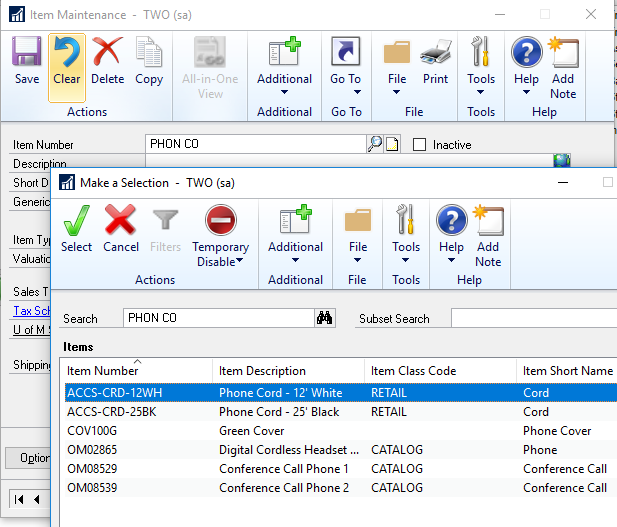
Perhaps you have already created a Custom SQL Object for a specific table, and it’s working great when you type a word and search. However, to make the lookup process easier, you want to allow the users to type in two words to search in SmartFill. To do this, you will need to add the tokens to the Custom SQL script.
Example 2:
In another SmartFill Object, you have the correct results appearing, however there are multiple records appearing for the column you need to select. For example, the field you need to select is the Customer ID and based on the table linking you have done, the Customer ID appears multiple times. You would like it to just appear once in the list. You can do this by adding the Distinct command to the Select statement in a Custom SQL script.
Modify For Your Needs
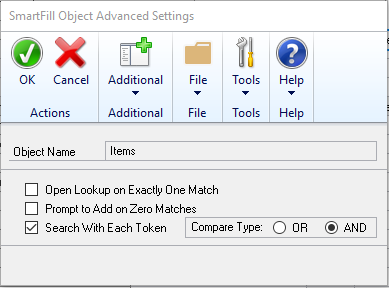
To use either of the scripts below, you will need to modify them a bit to meet your needs. After it is modified, run it against the DYNAMICS database. In Microsoft Dynamics GP, be sure you are using the ‘Search With Each Token’ option. To set this, follow these steps.
- On the Microsoft Dynamics GP | Tools | Setup | SmartFill | Objects.
- Double-click the Object you are working with.
- In the SmartFill Object Maintenance Details window, click Advanced.
- Mark Search With Each Token and choose OR or AND.
- You are now ready to use SmartFill and search using more than one word!
…Or You Can Let Us do the Customization For You
Struggling with any of the steps above? We’re more than happy to create a Custom SQL Script for you as a consulting service! If you’ve got questions, or need guidance, we’re always available at support@rocktonsoftware.com.