
Subject
How do I perform a mass update or large data import in Acumatica without overwhelming the RPM sync queue and causing performance issues?
Answer
When large batches of records are updated in Acumatica, each change triggers a sync request to RPM, which can flood the sync queue and degrade performance. The solution is to temporarily deactivate the relevant RPM Business Event in Acumatica before the mass update, perform the update, then use RPM’s Data Sync > Sync Maps to sync all records at once, and finally re-enable the Business Event.
Steps to Prepare for a Mass Update
Step 1: Open Business Sense in Acumatica.
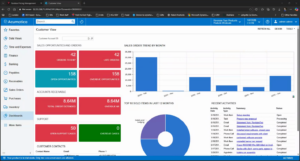
Step 2: Use the search on the right panel and type rpm. This will filter and display the relevant RPM business events that trigger the syncing process.
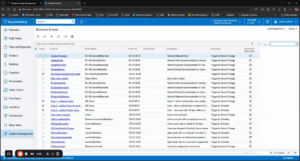
Step 3: Find the business event related to your update (for example, a mass customer update). Open that business event.

Step 4: Mark the business event as Inactive to temporarily turn it off.
Step 5: Click Save.
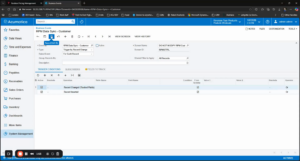
Now, the business event is disabled. You’re ready to proceed with your mass update in Acumatica.
Step 6: Perform the mass update or data import in Acumatica as planned.
Steps to Sync and Restore Regular Operations
Step 7: After finishing the update, open Data Sync and select Sync Maps in RPM.
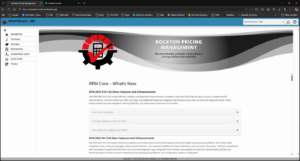
Step 8: Find the sync map for the updated records (e.g., customers). Click Run Now and select Sync All Records. Check the Sync Queue tab to confirm the process. When you see customer all is complete, the records have been synced.
Step 9: Return to Acumatica, re-open the business event you deactivated earlier, and mark it as Active again.

Step 10: Click Save.
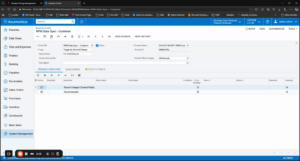
Acumatica will now resume syncing individual record changes as normal.
What If You Forget to Disable the Sync?
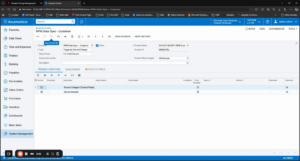
If the mass update is completed with the business event still active, a surge of records will appear in the sync queue. Immediately deactivate the business event to stop additional requests from queuing. RPM will continue processing the backlog — it may take time, but all queued records will eventually be cleared.
Additional Notes
This approach protects Acumatica’s performance and keeps data flows organized, especially during large imports or bulk edits. Disabling the business event before the update and using a single bulk sync afterward is always preferable to allowing individual change events to queue individually at scale.