
If you found yourself in a pickle and you need to create a support case, take a look at the following information that we’ve put together to make life a little easier when you’re creating a new support case.
The more that we know, the more we can help. Of course, there are some instances of where you cannot provide a ton of information right away and we do understand that, too!
Creating a Support Case
To create a Support Case, you can call, email, or even create a case within the Rockton Software product, or products, that you’re using.
1. Call and leave a voicemail, if needed. Toll Free: 877-476-2586, International Phone: 208-263-5288.
2. Send off an email to support@rocktonsoftware.com
3. Create a case using Web Services in the Help | Rockton Software Support window.
Below are a few different tips and tricks that I’ve found to be the most helpful when working on and troubleshooting a support case.
Version Information
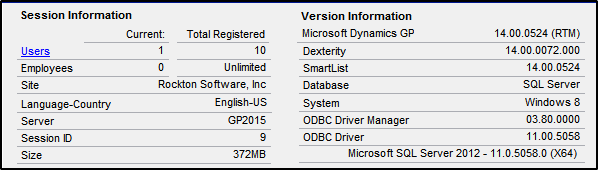
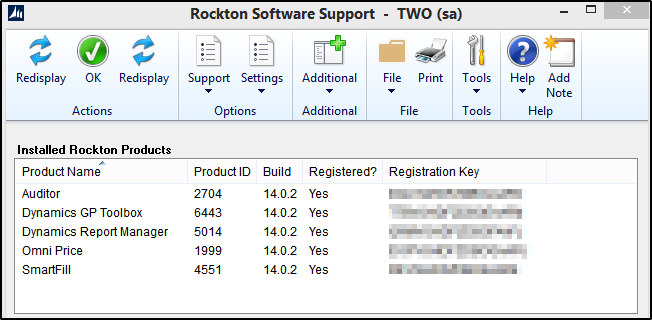
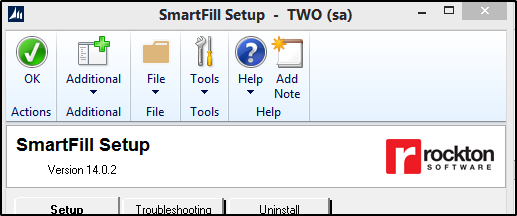
We always love to know the exact versions of Microsoft Dynamics GP and the builds of the Rockton Software product or products that you’re currently using.
To find the Microsoft Dynamics GP version from within Dynamics GP, go to Help [Alt + H] | About Microsoft Dynamics GP.
To find the current Rockton Software product build, you can go to Help [Alt + H] | Rockton Software Support.
Or you can also go to Tools | Setup | Product | Product Setup.
Screenshots
If you’re receiving specific error messages or having a specific issue take a screenshot so we can see. Screenshots are always helpful to have included in your case.
Details
Always include any details about the issue you’re having along with any troubleshooting steps, blogs, or Knowledge Base articles, which you have already tried. Include repro steps if the issue/situation can be recreated.
Here are some examples: The issue only occurs on one workstation, the issue is occurring for specific users, it all started happening after an update was applied, a new product was recently installed, etc.
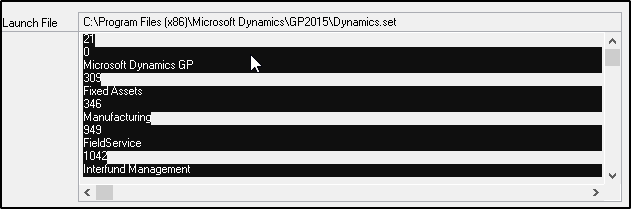
Including a copy of your DYNAMICS.SET file is also helpful, this allows us to see what other products you’re currently using. Note: You can quickly copy/paste your Launch file right from the Help [Alt + H] Rockton Software Support window.
Scripts
If an error message is being thrown, try to capture a Script Log or a dexSQL.log of when the error is being thrown.